 Peter Founder
WorkBuddy: Built-In AI Agents and Scheduled Competitor Ad Spying
WorkBuddy
Hi, I’m Peter.
Let’s talk about WorkBuddy, which is very hot right now. If you don’t want to wrestle with Claude or Codex, I think it works as an alternative.
I’ve used it in depth for more than a month. It has lots of features and a low barrier to entry: an AI agent tool that’s quite friendly to newcomers.
Below I’ll cover it all in one go: what it is, why it’s easy to pick up, how to use its four layers of features, and the competitor ad intelligence workspace I built with it.
01 What WorkBuddy is
In one sentence: it’s a desktop agent from Tencent, the same kind of thing as Claude Code and Codex.
The fundamental difference between this kind of product and a chatbot: with a chatbot, you ask, it answers, and you still do the work.
With an agent, you throw it the whole task: “sort the creatives in this folder by platform”, “check what this competitor has been running lately”.
It breaks the job into steps, calls the tools and finishes the work on its own, then hands you the result.
Open WorkBuddy and there are three modules across the top, Daily Office, Code Development and Design & Creative, with a row of ready-made scenarios below them:
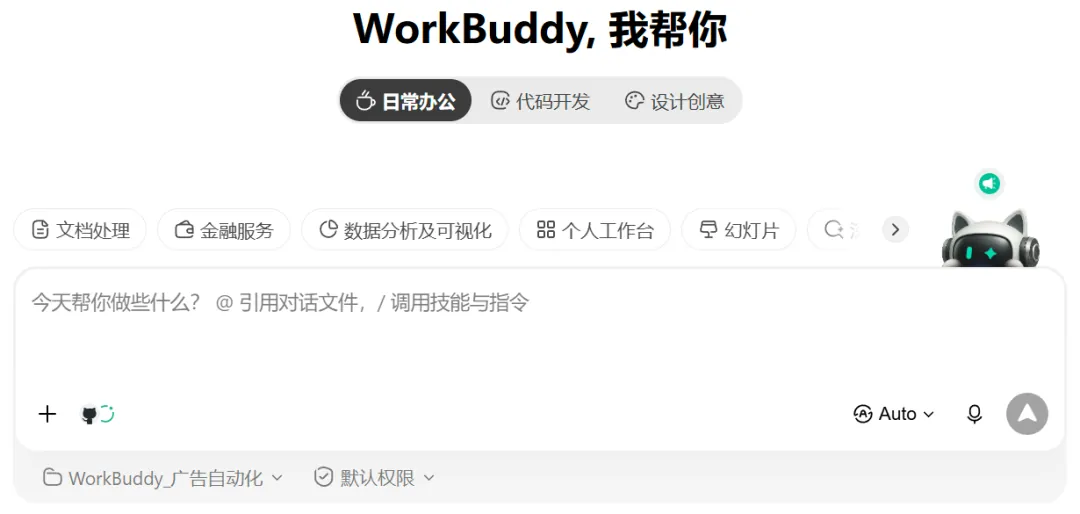
Three modules, with scenarios like documents, data analysis and deep research one click away
For writing scripts and building sites, pick Code Development; for cover images and slide decks, pick Design & Creative; all the remaining odd jobs (organizing files, pulling data, writing documents) go under Daily Office.
The day-to-day work of media buying mostly lands in the first and third modules.
02 Why I say it’s easier to pick up
Three hurdles, compared head to head:
| WorkBuddy | Claude Code / Codex | |
|---|---|---|
| Getting started | A Chinese product, install it and use it right away | Network access from China, an overseas phone number, monthly/annual subscription payments, and anxiety about account bans |
| Price | 100 free credits every day, enough to run light tasks; the Standard plan starts at RMB 70/month | Mainstream plans start at $20/month, and the free quota is on the tight side |
| Models | The mainstream Chinese models such as GLM, Kimi and MiniMax are all there, and you can plug in a custom API too | Top-tier models, a mature ecosystem, plenty of supporting tools built up |
The credit system is very friendly to beginners: the free daily allowance is enough to run one or two light tasks, which means you can try it at zero cost first and only pay once it feels right.
The model setting defaults to Auto mode, where it assigns whichever model isn’t queuing at the moment. Every model has its consumption multiplier clearly posted like a price tag, the cheap ones cost only a fraction of 1x, and there are discounts at night. If the task isn’t heavy, let it pick the cheap ones automatically.
If you don’t want the built-in models, you can also configure a custom API in the settings (OpenAI-compatible protocol) and plug in whichever one you find works well.
To be honest, I use both right now: for writing code and heavy work I’m used to Claude Code/Codex, while more and more of my everyday odd jobs now go to WorkBuddy.
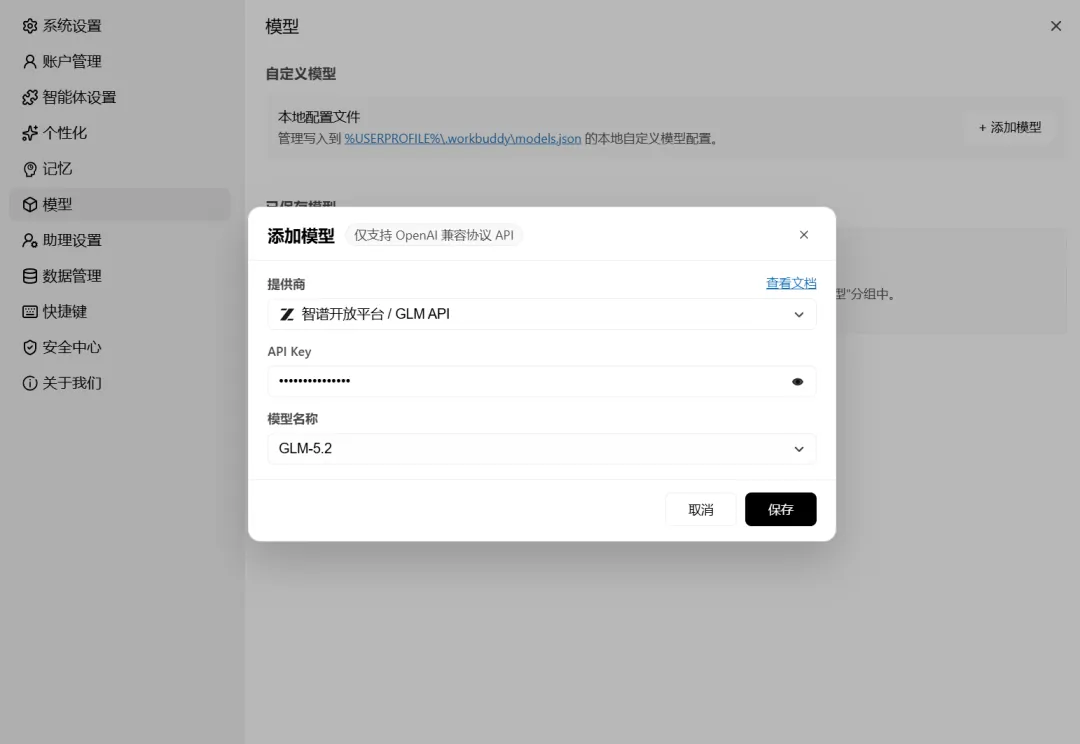
Custom models: add extra models on top of the built-in ones
03 Starting a task takes three steps
Step one: choose a workspace
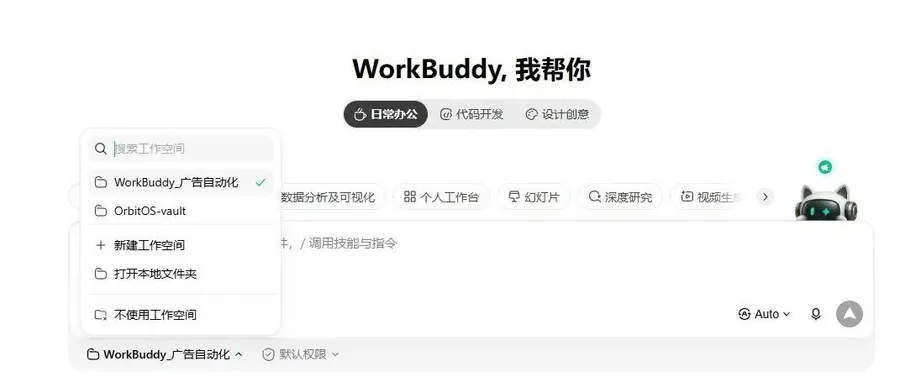
Just open a local folder. That’s like drawing a work boundary for the agent: from then on it can only act inside that folder instead of rummaging all over your hard drive. For anyone handing their files to an AI for the first time, this design matters a lot:
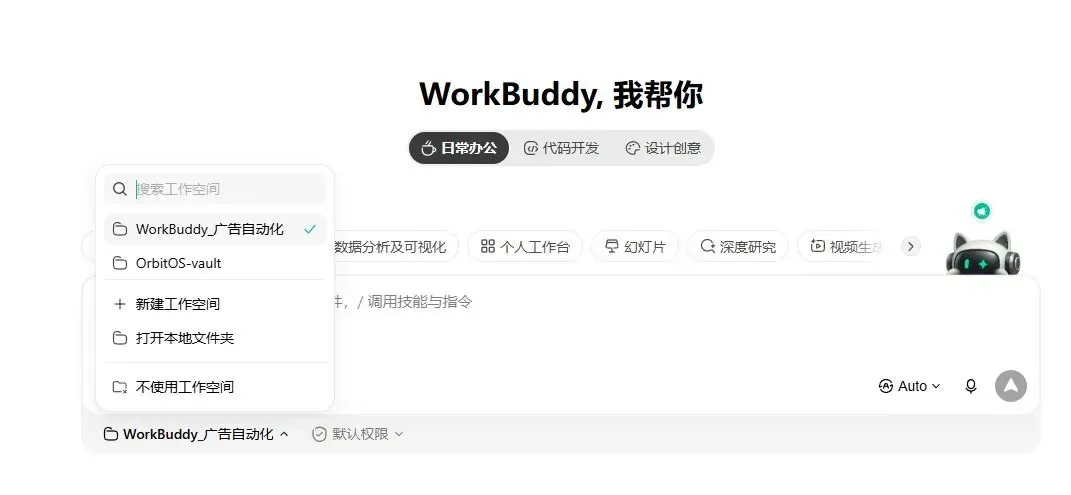
Pick the workspace at the bottom left, for example my WorkBuddy_Ad Automation
Step two: choose a mode
Default mode simply gets the task done. If you’re not comfortable with that, switch to Plan mode: it lists a plan for you to review first and only gets going once you give the nod. Q&A Only is pure chat.
My advice: just use the default, and switch to Plan mode later when you have a case that needs breaking down or something complex.
Step three: give it the task
In the chat box, @ lets you point it to a specific file, and a slash calls up skills.
When the task finishes, the output is generated straight into your folder, with a preview on the right.
Not one step of the whole process requires writing code or setting up an environment. That’s the install-and-go I talked about in 02.
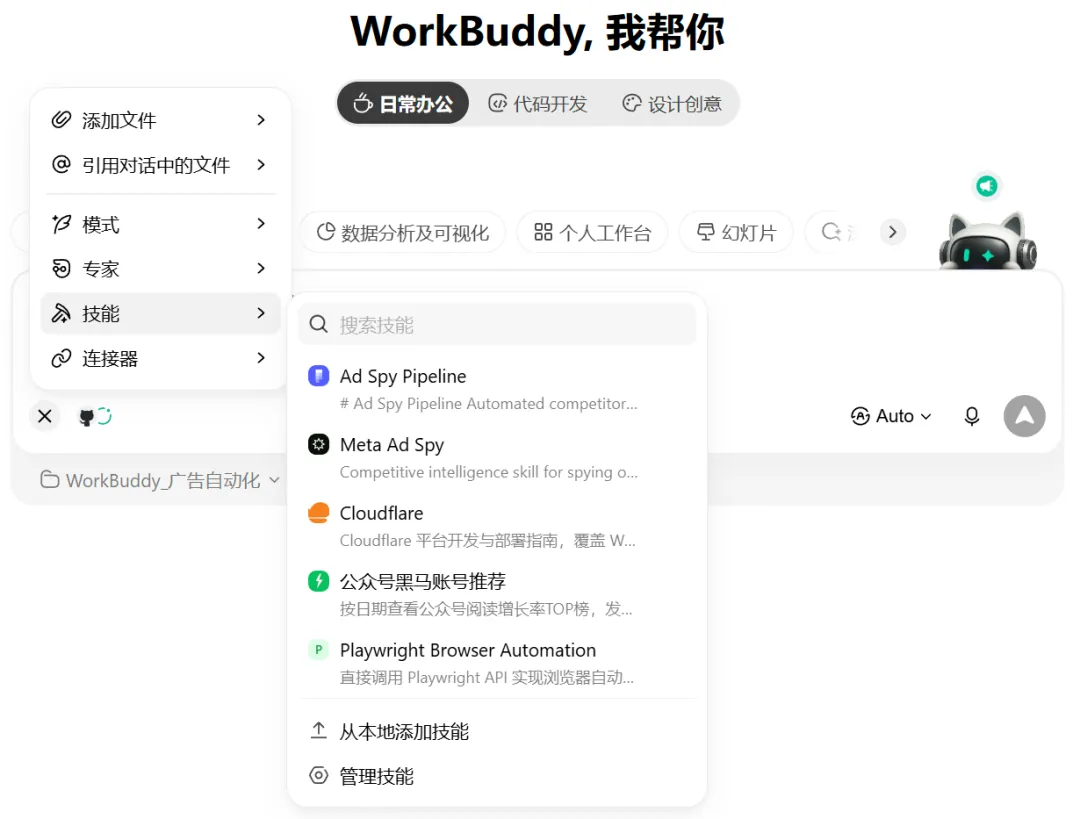
Skills: the Ad Spy Pipeline and Meta Ad Spy skills I installed show up by default
04 Four layers: Experts, Skills, Connectors, Automation
This is where the experience differs most from other agents: you don’t need to know how to write prompts, because it has everything laid out for you, in four layers:

Four layers: WorkBuddy’s core mechanism
Experts: ready-made people, click one and they get to work
Think of experts as the capabilities of different trades packaged into ready-made agent roles, sorted by industry and laid out in a marketplace. You can also @ an expert into a conversation at any time to get them working.
I searched for the ones directly related to running ads, with the keyword “ads”, and 25 came up:
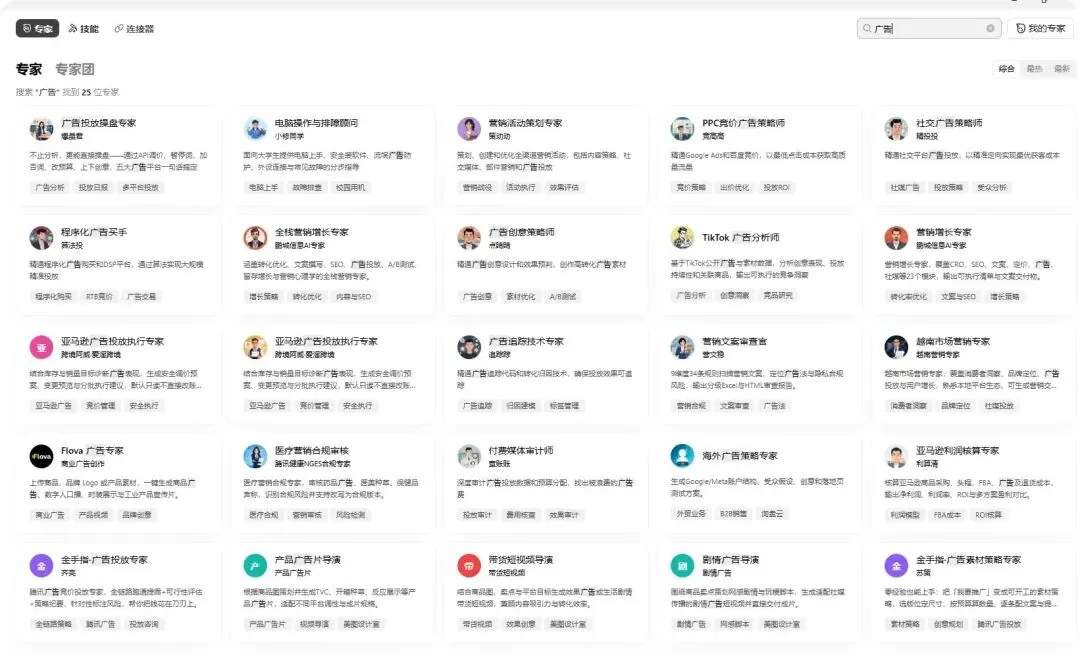
Searching “ads” brings up 25 experts: from campaign management, bidding and programmatic to tracking and creative strategy
Campaign operations, PPC bidding, programmatic buying, TikTok ad analysis, ad tracking, overseas ad strategy… a whole row of ready-made people.
What an expert produces is generally better than what you get chatting with a bare model directly, because it comes with a full set of tools and methods configured behind it. In effect, someone else has done the prompt engineering for you. That’s exactly what gives beginners who can’t write prompts their confidence.
Skills: reusable workflows
Skills are called with a slash. The skill library has plenty ready-made: DingTalk, Feishu (Lark), Tencent Docs, Obsidian, plus things like data queries and browser automation.
One of them is Skill Creator: it packages a process you keep repeating into a skill, so from then on you call it with a single slash instead of sending a long string of prompts every time.
If you make content or creatives and there’s a process you have to explain all over again every time, this feature was made for exactly that.
Connectors: plugging peripherals into the agent
Connectors are MCP. Think of them as plugging peripherals into the agent: QQ Mail, Tencent Docs, Tencent Meeting, WeCom (WeChat Work). Click the plus sign, scan the QR code to authorize, and it’s connected.
Once connected, the agent can send and receive email, manage documents and look up data for you.
Automation: putting work on a schedule
The last layer is automated tasks: give the task a name, spell out what it should do, pick the frequency (daily, weekly or one-off), and it runs for you on schedule.
Weekly reports, routine data checks and other repetitive jobs that happen come rain or shine are the best things to drop in here. There’s just one small catch to remember: the client has to be open when a task runs. If you quit, the task doesn’t run.
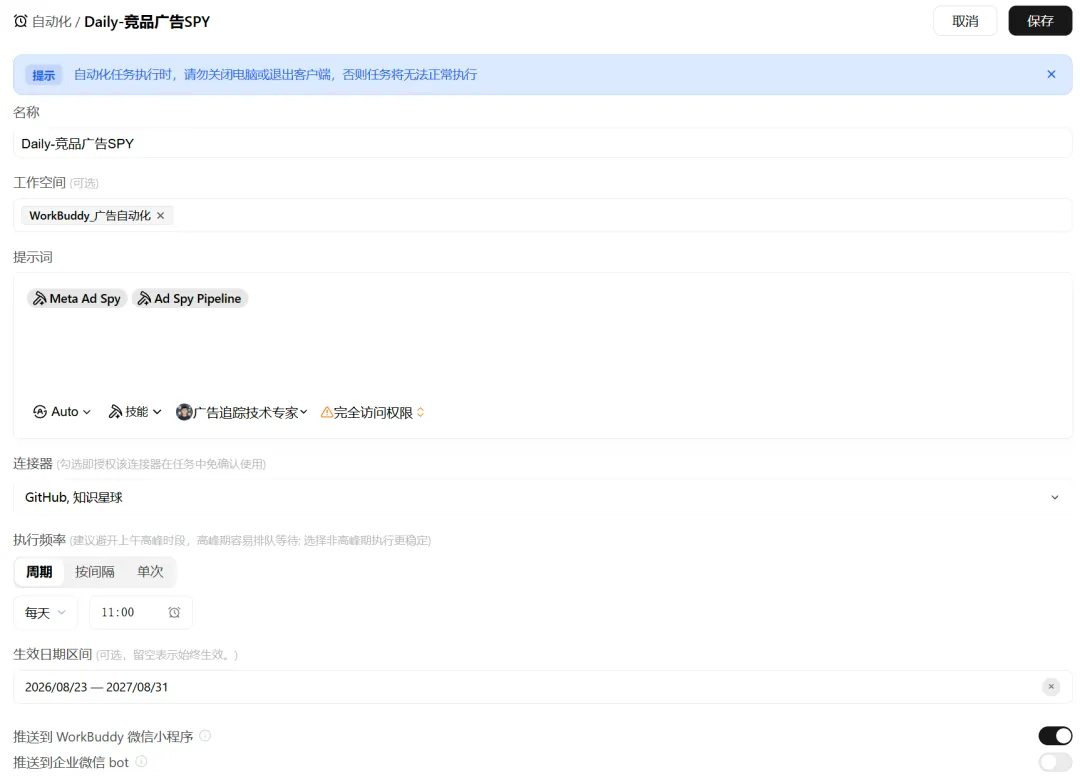
Automation: sends you competitor ads on a set schedule
05 The first workspace I built: competitor ads
That’s the product. Now for what I’ve actually done with it.
I set up a workspace called Competitor Ads and installed two skills directly related to media buying: Meta competitor ad intelligence, and the ad pipeline that goes with it:
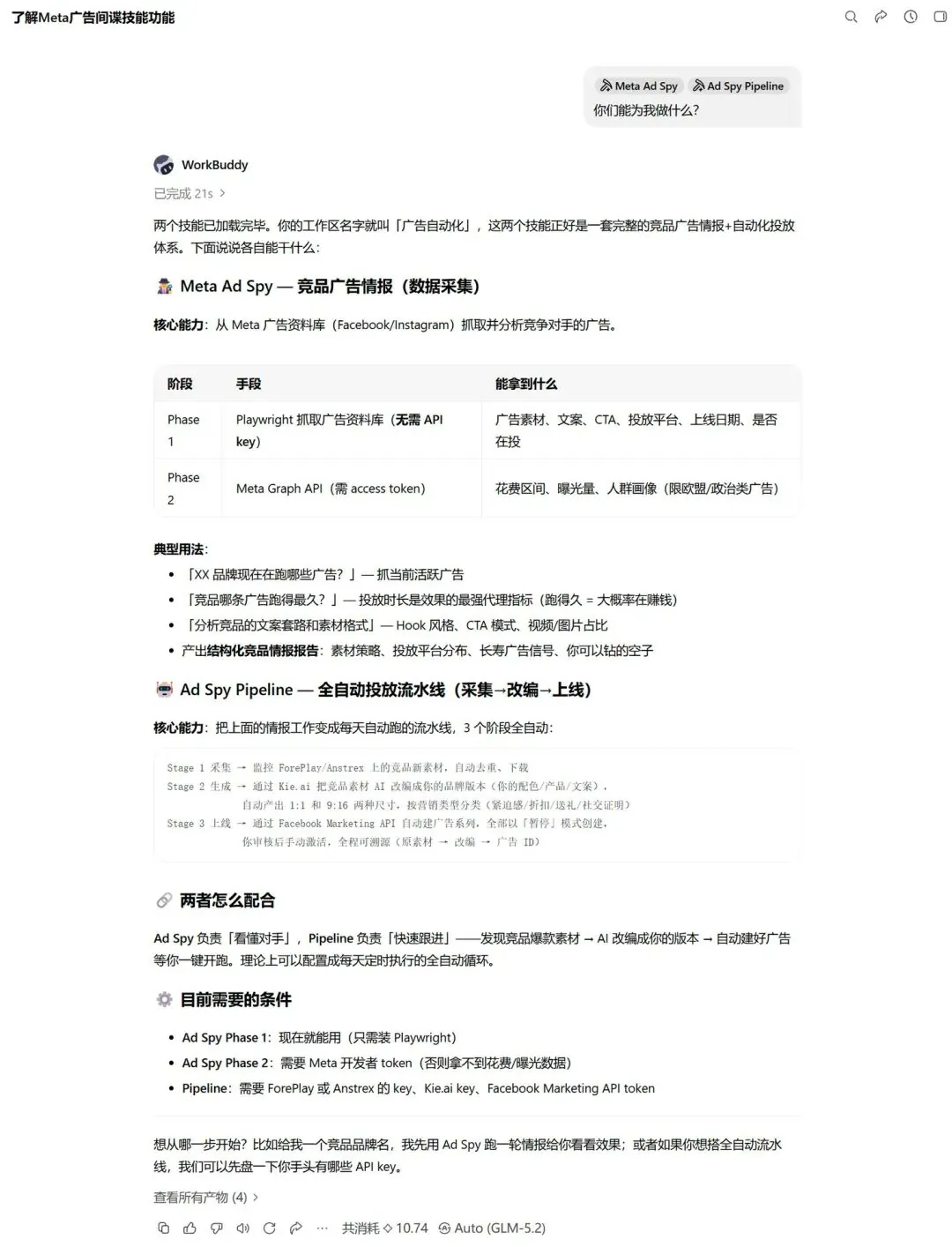
The Competitor Ads workspace: just ask “what can you do?”
First, where they came from: I didn’t write either skill. They’re ready-made in SkillHub. Search “Spy” and a whole row of intelligence skills pops up, for Meta, Shopify, Reddit and Amazon, and you install one by clicking the plus sign.
Meta Ad Spy works in two stages. Stage one queries Meta’s public Ad Library and, without any API key, gets you a competitor’s ad creatives, copy, CTA, the platforms the ad runs on, the launch date and whether it’s still running.
Stage two connects to the Graph API (you need an access token) and pulls deeper data such as spend ranges and impressions.
Typical use comes down to three questions. What ads is brand XX running right now? It grabs the currently active ones.
Which competitor ad has been running the longest? Run time is the strongest proxy for performance: if an ad keeps running for a long time, it’s very likely making money.
Analyze the competitor’s copy formulas and creative formats: hook style, CTA patterns, the split between video and images. At the end it produces a structured intelligence report.
Doing all this used to mean opening several spy tools and flipping back and forth between them. Now it takes one sentence.
I threw it a random ad link from the PH market, and here’s its analysis:
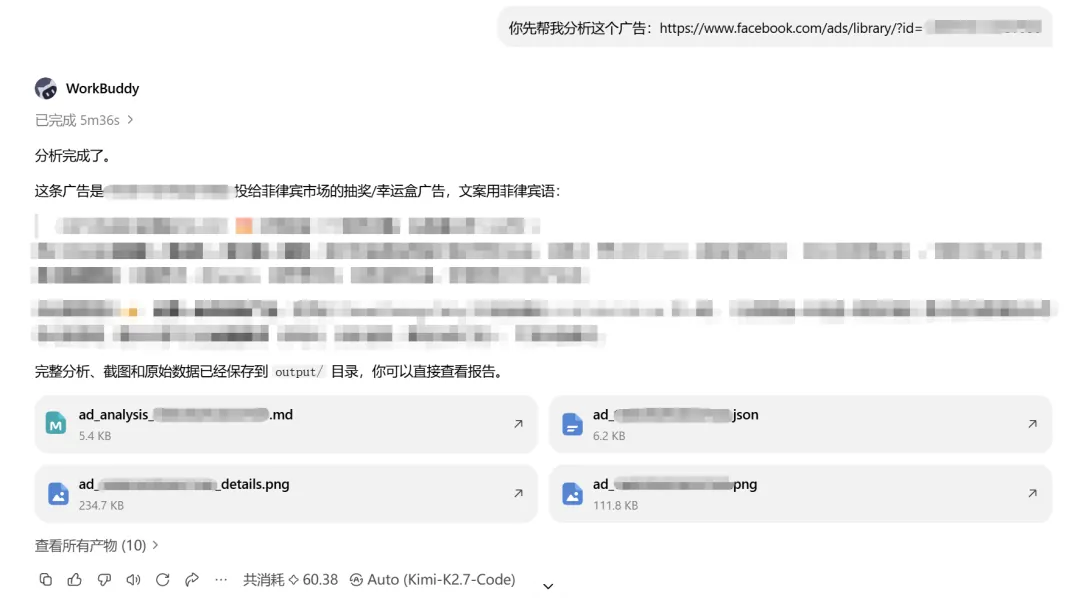
Drop in one link: the play broken down, localization highlights, outputs archived automatically
It broke down this ad’s play crystal clear: high reward, zero cost, low barrier, limited time, localized, in Filipino.
Agents like this are a natural fit for ad intelligence.
There are just three reasons:
High frequency: competitors launch new ads every day. Fixed process: search, break down, archive, something you could write into an SOP with your eyes closed. Public data: the Ad Library is open to begin with.
Put all three together and you’re on the agent’s home turf. Add the fourth layer, scheduled tasks, put a round of competitor intelligence every morning on the schedule, and by the time you get to your desk, the report is already sitting in your folder.
The companion Ad Spy Pipeline can go a step further: as the next step, it strings the whole chain into a pipeline that runs automatically every day, in three stages:
Collect: watch competitors’ new creatives and download them automatically, with duplicates removed. Generate: use AI to adapt the creatives into versions for your own brand, output in both 1:1 and 9:16 sizes. Launch: build the campaigns automatically through the Marketing API.
06 A few thoughts
Whether an AI tool catches on isn’t only about who’s more powerful; it’s even more about whose barrier is lower.
Some people are stacking up model capability, others are flattening the barrier to entry, and both matter. But what actually makes “everyone has a digital employee” happen is usually the latter: things you can open and use right away.
After testing WorkBuddy hands-on this time, I’m satisfied overall. It’s also one of the stronger Chinese tools I’ve come across lately.
Sharing it with you all. Hope it helps!
New articles and quick notes from Peter.