 Peter Founder
Connect Meta's Official MCP in 5 Minutes to Automate Your Ads

Meta MCP
Hi, I’m Peter.
Meta released its own MCP this year. Add it to your Agent with one command, log in and authorize, and in 5 minutes you’re connected.
This post covers what it is, how to connect it, and what we do with it once it’s hooked up.
01 Meta MCP
Think of MCP as an interface: once it’s connected, an Agent can read your ad accounts directly, within the scope you authorize, and can also build ads for you.
Meta released this one in late April. It’s called the Meta Ads AI Connector, and it’s still in public beta. Meta hosts the server itself, at https://mcp.facebook.com/ads . We don’t write any code or set anything up ourselves; you just log in to your own Facebook account and authorize.
Officially it supports 4 AIs: ChatGPT, Claude, Claude Code and Perplexity. I use Claude Code.
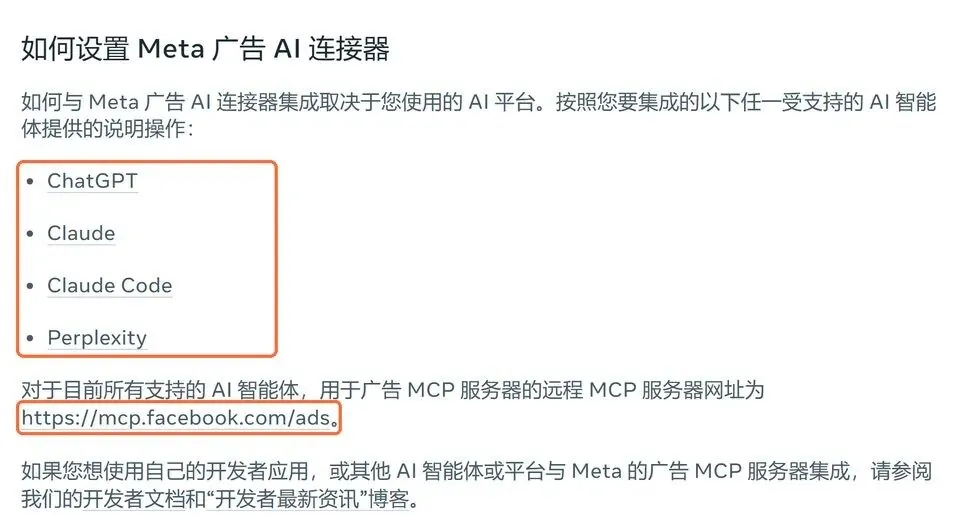
The 4 officially supported AIs and the MCP server address
Once we connected it, we counted 100 tools in total: 57 are for queries, and 43 can change the account. The ones I use most fall into three groups: pulling data, building ads, and optimizing.
One more thing you can relax about: ads created through it are paused by default, so nothing spends money until you set it to run.
02 Connect in 5 Minutes
Step 1: add one line in the terminal:
claude mcp add --transport http --scope user meta-ads https://mcp.facebook.com/adsStep 2: open Claude Code, type /mcp, pick meta-ads to authorize, and the browser jumps to Facebook’s authorization page.
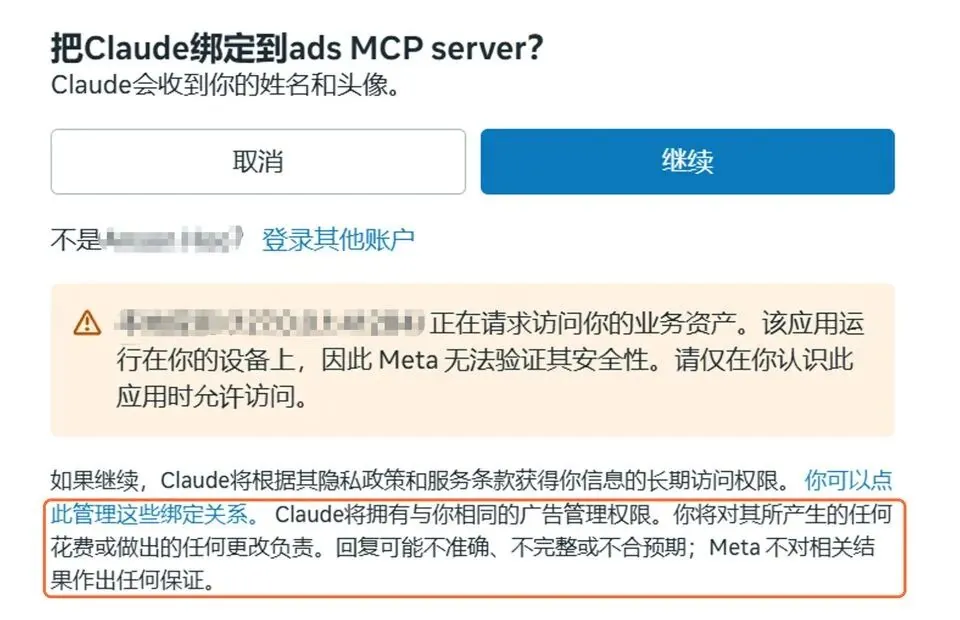
After authorization, Claude has the same ad management permissions as you
I took this screenshot as a reminder: the moment you authorize, it can act on the account just like you can. That’s why I’ll get to the rules we set for ourselves later.
Step 3: choose which business accounts and Pages to give it. We chose all of them; if you have many accounts and worry it might touch the wrong one, pick only the few you currently use.

Selecting the business accounts to share with Claude
If you have several BMs, you don’t need to merge them first. Authorize with the same login and tick the BMs and accounts you want to give it.
Step 4: go back to Claude Code and ask it to list the ad accounts I can manage. If it lists them, you’re connected.
Step 5: set rules for the AI. If you have full control over your business portfolio, go to Meta Business Suite, Settings → Integrations → Ads MCP Server. There you can allow or block things account by account, for example not allowing it to create campaigns, or rejecting any budget above a set amount. Meta enforces these rules on its side, so any request from the AI that goes beyond them is rejected outright.
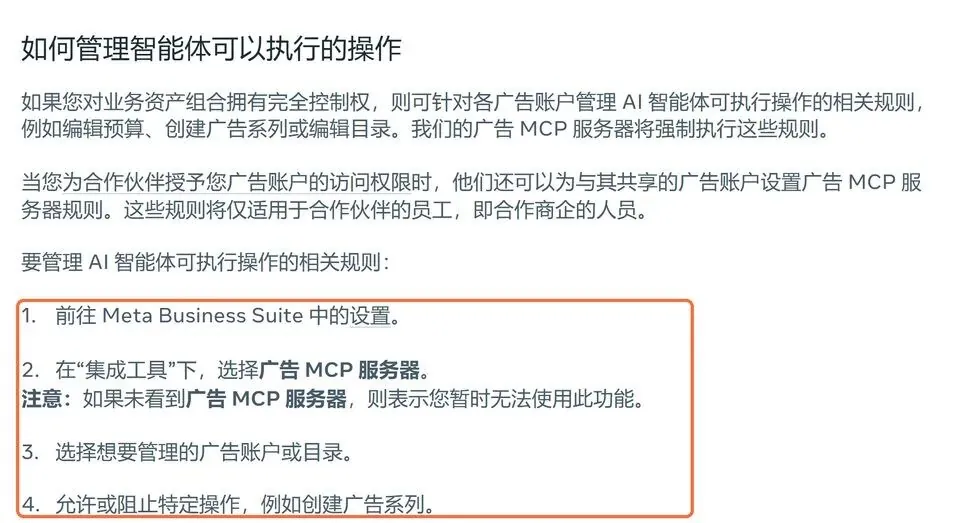
Where you set rules for the AI
If you can’t find this option, the feature isn’t available for your account yet.
Many people in the community worry that connecting an AI could get their account banned. Since this is the official MCP, I also looked up what Meta says: using MCP alone is unlikely to get you banned, and bans are usually still about the ads themselves breaking the rules.
03 It Works with ChatGPT on the Web Too
It’s the same if you use ChatGPT; we connected that too.
Search for Meta Ads in ChatGPT’s plugin directory and you get 30-plus results, all third-party, none from Meta itself. You have to add the official one yourself: Settings → Plugins → “Add” in the top right → “Add custom MCP server”. Enter the same address as the connection, and choose OAuth for authentication.
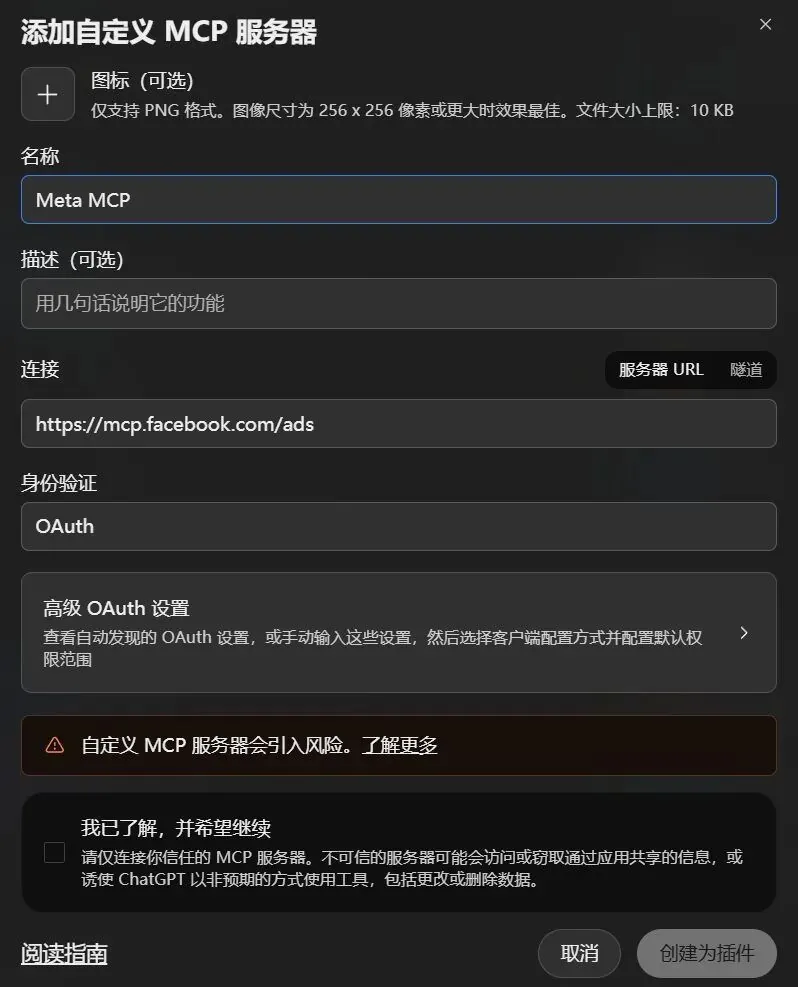
Adding a custom MCP server in ChatGPT
After you create it, it jumps to Facebook and asks whether to link ChatGPT to the ads MCP. Click continue.

Facebook’s link confirmation
Once linked, go back to ChatGPT’s plugin details page and take a look. It only counts as connected if it shows the connected accounts.
After that, ask it the same read-only question:
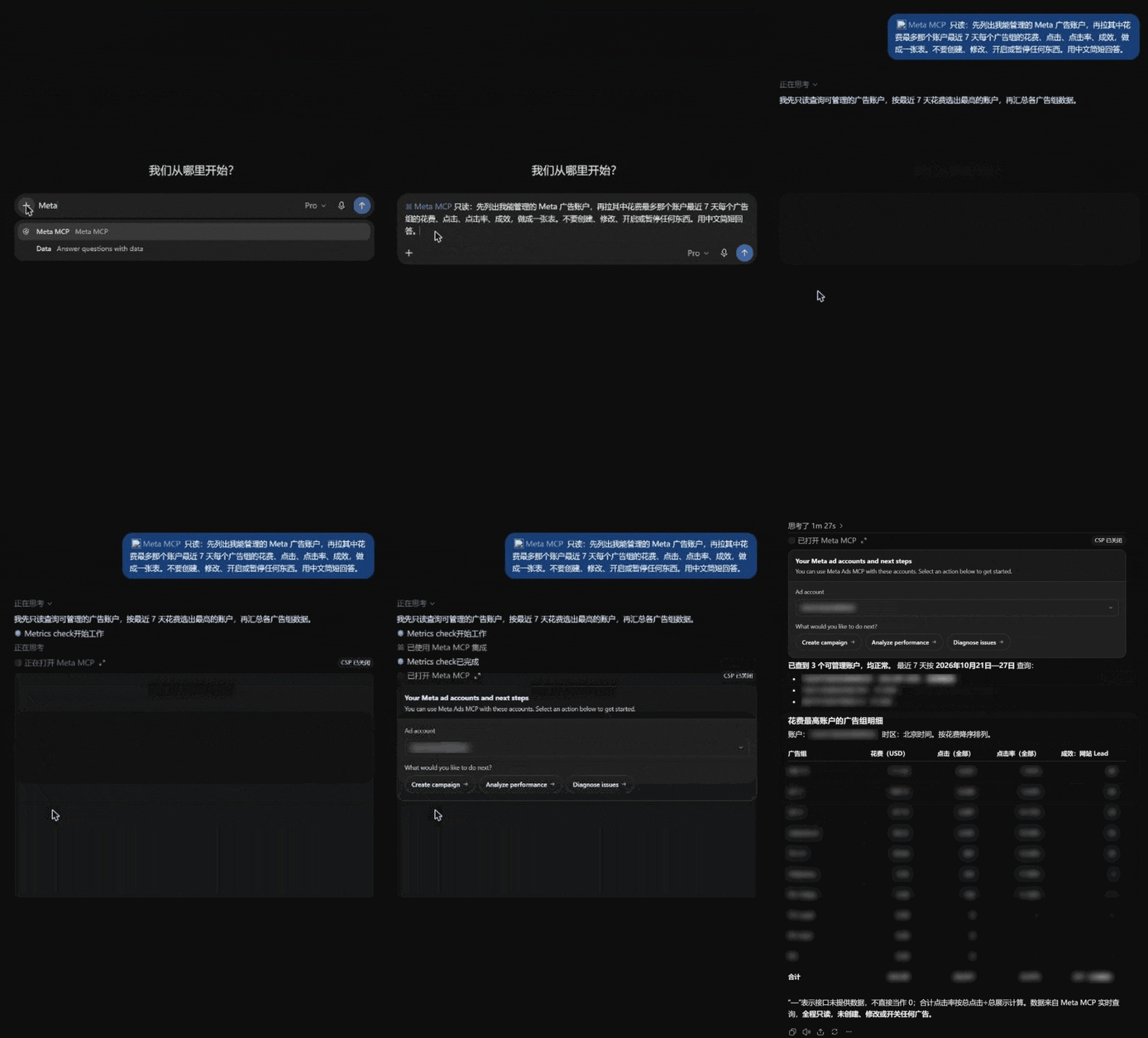
ChatGPT Meta MCP
Midway, a card from Meta itself pops up, with a button for creating a campaign. It only touches the account once you click it.
The same Facebook login can be authorized for Claude and ChatGPT at the same time. After we connected ChatGPT, Claude Code could still query just fine.
04 Once Connected, Let It Read the Data First
After authorizing, the first thing I gave it was one line: read the data.
It pulled each ad set’s daily spend, clicks and conversions. The FB pixel recorded slightly fewer conversions than the actual number. CTR had stayed steady, and conversion rate only dropped after the click, so we went to check the part after the click first.
It also went through the account’s activity history and found that the night before, the bid strategy of one ad set had been changed, and that ad set had no impressions after that.
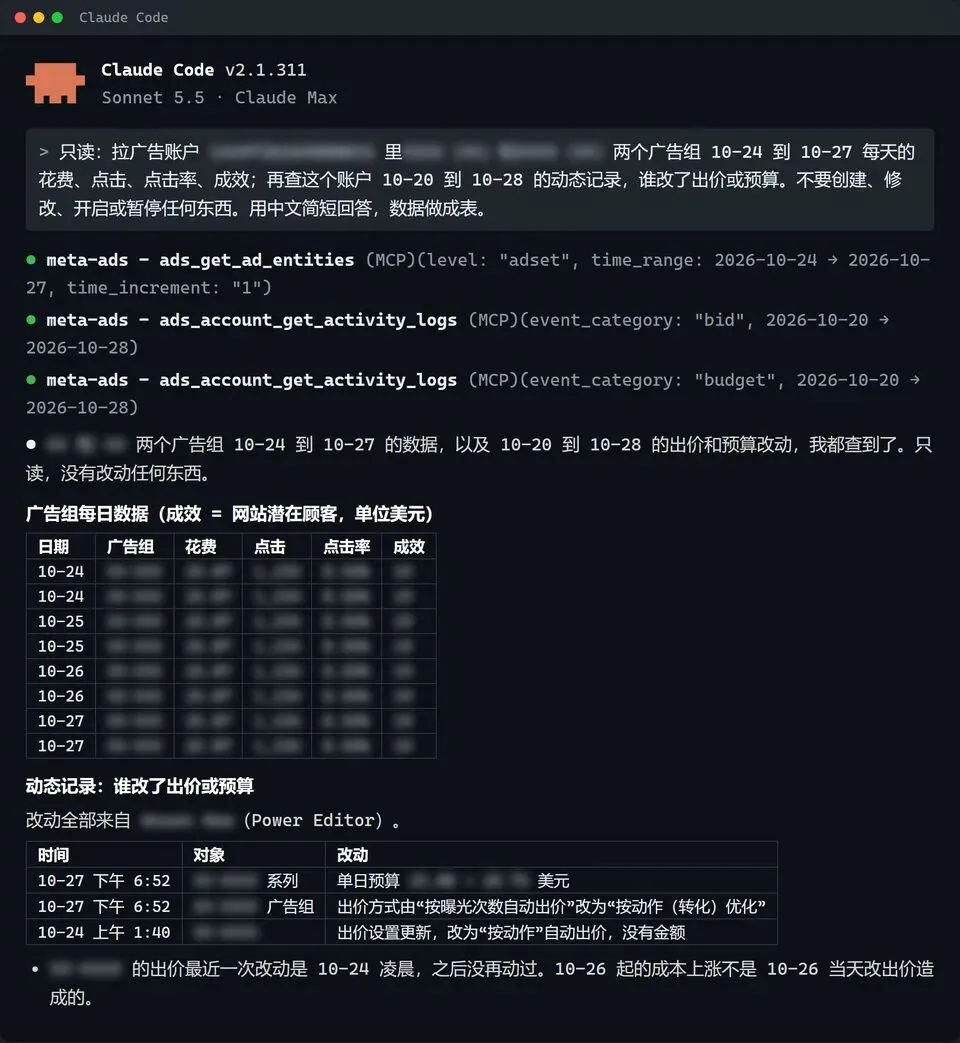
Claude querying Meta data in real time
05 How to Automate Your Ads
We can pull data from multiple accounts together by country, shut down underperforming ads on a daily schedule, and adjust budgets twice a day by rule. For large budgets we do it by hand ourselves. We’ll start in this direction and tune it step by step.
- Bulk creative upload. For each country there are 2–6 versions, each with videos in three ratios: 9:16, 4:5 and 1:1. I have it upload all the videos in a folder at once, creating one creative and one ad for each.
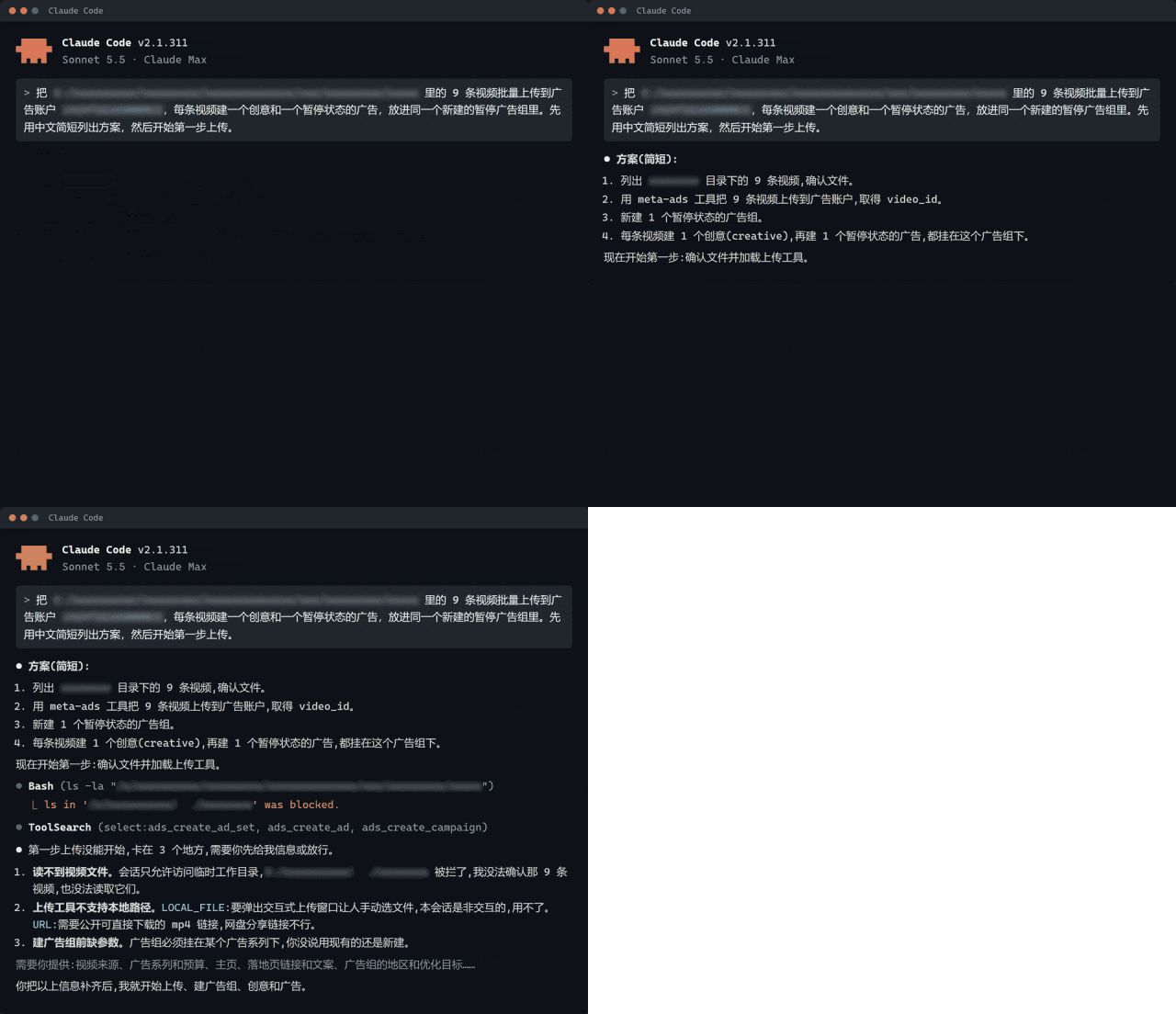
Bulk video upload
But there’s a catch: its upload tool doesn’t recognize local paths. Either you pick the files one by one in the upload window that pops up, or you first put the videos at a publicly downloadable link. So first upload the videos to your own storage, then have it bulk upload from the links.
-
Bulk testing of image and video creatives. It can set up A/B tests. First I have it check whether the account can run a test, how to split the groups and which metric to compare. I set the budget and start time before turning it on, and once it has run I look at which one has the lower cost per result.
-
Check for anomalies every morning. Have it check whether spend suddenly rose, whether impressions suddenly dropped, and shut down anything abnormal promptly.
-
Watch the comments. Bad reviews, spam comments and links under an ad hurt its performance. But MCP has no tool for this, so I just have the Agent build one, which regularly hides and deletes this kind of comment.
-
Check competitors. It can also search the Meta Ad Library, looking at what creatives others are running by keyword, Page or country. The creative library it puts together can then be fed back to the Agent to keep producing and testing in bulk.
06 My Take
I’ve connected the MCPs of PropellerAds, ProPush and Zeydoo before. This time it’s Facebook’s turn, which is also where we spend the most money.
Once it’s connected, you can set a rule first: read-only data. Then for building ads, launching, changing budgets and changing bids, open them up once you’re sure everything is fine.
Finally, I hope this article helps you!
Translated from the Chinese original published on 2026.10.28.